The Broker Panel has two roles: Admin and Staff. Each team member has one role.
Role Permissions
Admin
An Admin has the following permissions:
- Manage team member accounts and roles.
- Manage broker settings, API keys, forms, brand assets, email settings, email templates, and scheduled reports.
- Perform restricted service actions, such as service cancellation and welcome email resend.
- Approve or deny pending service requests.
Only an Admin can open Team Management. The panel also checks the Admin role when it processes each team management action.
Staff
A Staff member can manage their own profile, notifications, password, and login security. A Staff member can approve or deny pending service requests.
A Staff member cannot open Team Management. A Staff member cannot add, edit, remove, or change the role of a team member.
Team Management Constraints
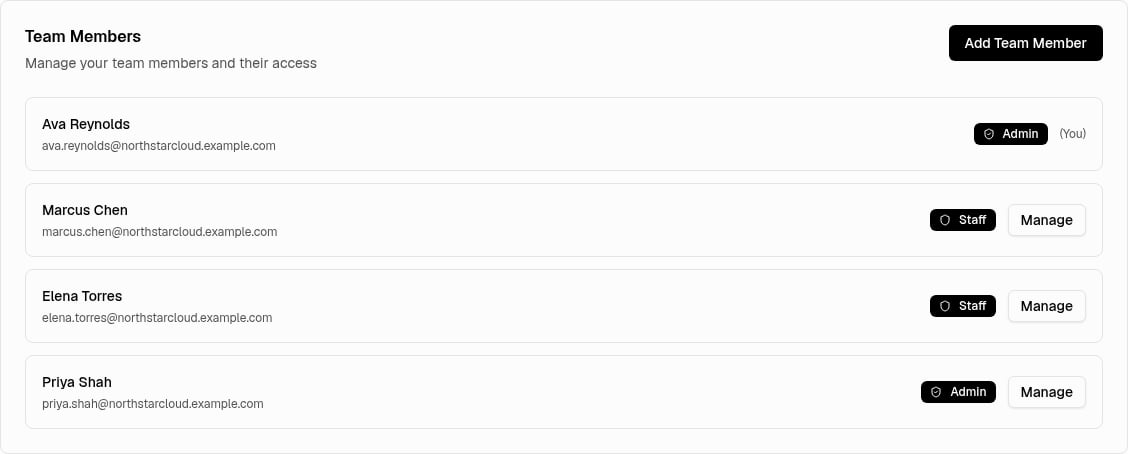 The following account protections apply to Admin users:
- You cannot remove your own account.
- You cannot change your own role from Admin to Staff.
- At least one Admin must remain on the team.
- You can manage only members of your broker organization.
The following account requirements apply:
- A password must contain at least 6 characters.
- Each account must use an email address that is not already in use.
Your own team row has the (You) label. It does not have the Manage button. Use My Details to change your own name or email address.
Add A Team Member
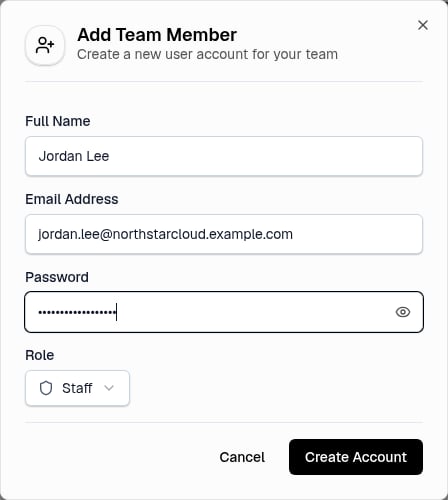
Adding a team member creates an active account. It does not send an invitation. You set the initial password during account creation.
You must have the Admin role.
- Open Account Settings.
- Select Team Management.
- Select Add Team Member.
Create The Account
- Enter the member’s Full Name.
- Enter the member’s Email Address.
- Enter an initial Password.
- Select Staff or Admin in Role.
- Select Create Account.
The default role is Staff.
Edit A Team Member
You must have the Admin role. You cannot edit your own account from Team Management.
Open The Member Details
- Open Account Settings.
- Select Team Management.
- Find the team member.
- Select Manage.
- Select Edit Details.
Save The Changes
- Change the required fields.
- Leave Change User Password empty to keep the current password.
- Select Update Member.
Change A Member’s Role
You must have the Admin role. You cannot demote yourself. At least one Admin must remain.
- Open Account Settings.
- Select Team Management.
- Find the team member.
- Select Manage.
- Select Change Role.
Select The New Role
- Select Upgrade to Admin or Downgrade to Staff.
The panel applies the new role immediately.
Remove A Team Member
You must have the Admin role. You cannot remove yourself.
Removing a member revokes that member’s access to the Broker Panel. The panel states that this action cannot be undone.
Open The Removal Confirmation
- Open Account Settings.
- Select Team Management.
- Find the team member.
- Select Manage.
- Select Remove from Team.
Confirm The Removal
- Review the confirmation message.
- Select Remove Member.
Last modified on August 2, 2026